

Take 70% off any PDF to CSV plan for 6 months with code CONVERT70.
Turn PDFs into clean CSV files — 70% off for 6 months
Take 70% off any PDF to CSV plan for 6 months with code CONVERT70.
Convert Credit Card and Bank Statements to Excel and CSV in Seconds
LedgerDocs is a powerful bank statement converter that lets bookkeepers, accountants, and finance teams convert bank statement PDFs to Excel or CSV—accurately and in seconds. Close your books faster and simplify accounting workflows.
If you’re searching for how to convert bank statement to Excel or how do I convert a PDF to an Excel file, LedgerDocs automates the process instantly with accurate, structured output.
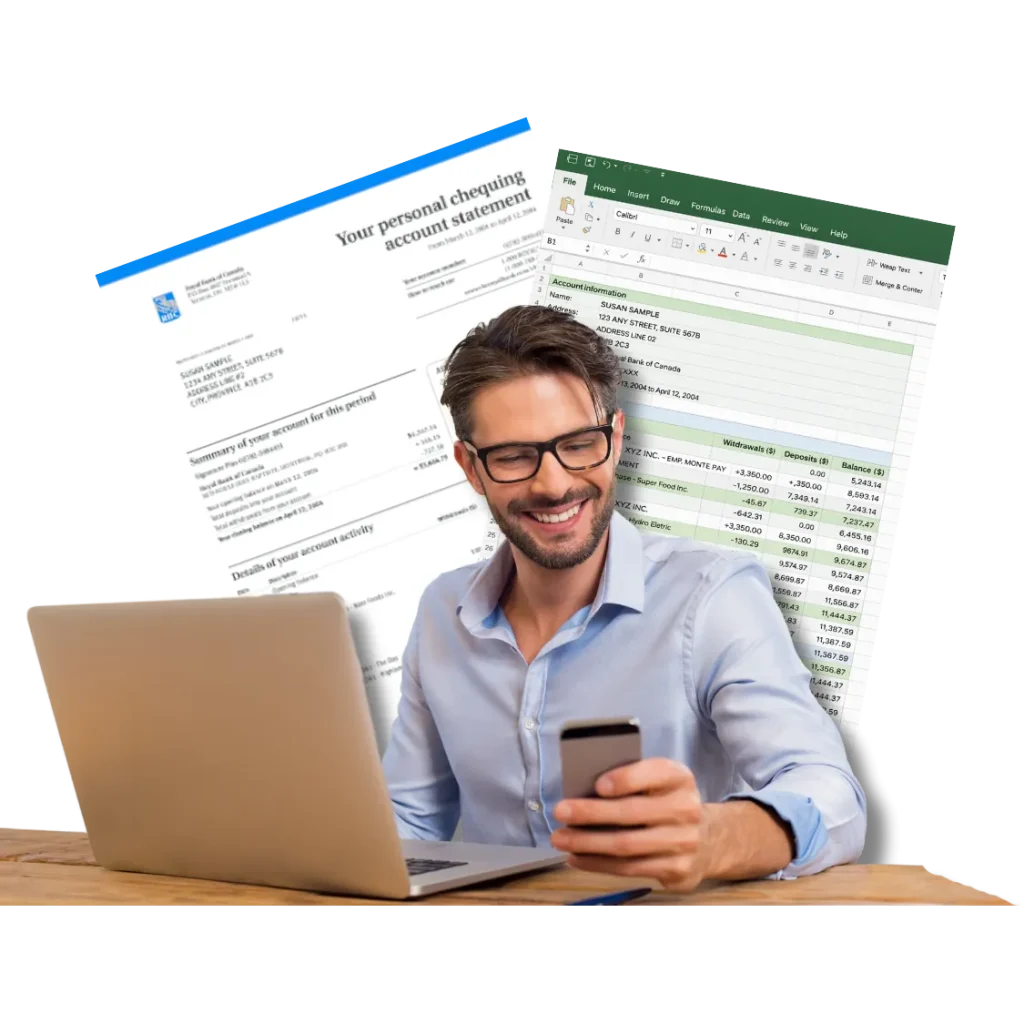
Designed for Fast, Accurate Bookkeeping
Stop wasting time formatting spreadsheets. With LedgerDocs, you can convert a PDF bank statement to CSV automatically—no formulas, no cleanup, no errors. Our OCR and machine-learning technology reads both digital and scanned PDFs, ensuring accurate data extraction every time.
Whether you’re asking can I convert my bank statement to Excel or handling hundreds of documents, our powerful bank statement converter scales with your workflow.
Simple, Transparent Pricing
Tired of overpriced tools that underdeliver? With LedgerDocs, you get everything you need to convert bank statements to Excel or CSV, without the inflated cost.
✨ Contact Us For Annual Plans!
100 Pages a Month
- Convert Bank Statements, Bills, and Invoices into CSV
- Extract Data from PDFs or Images
- Batch Document Processing
- Upload via Mobile App, Desktop, Email, or Scanner Apps
- OCR and Machine Learning-Powered Data Extraction
- Export Files to CSV for Upload into Accounting Software
- Convert 15 free pages on the free trial
200 Pages a Month
- Convert Bank Statements, Bills, and Invoices into CSV
- Extract Data from PDFs or Images
- Batch Document Processing
- Upload via Mobile App, Desktop, Email, or Scanner Apps
- OCR and Machine Learning-Powered Data Extraction
- Export Files to CSV for Upload into Accounting Software
- Convert 15 free pages on the free trial
500 Pages a Month
- Convert Bank Statements, Bills, and Invoices into CSV
- Extract Data from PDFs or Images
- Batch Document Processing
- Upload via Mobile App, Desktop, Email, or Scanner Apps
- OCR and Machine Learning-Powered Data Extraction
- Export Files to CSV for Upload into Accounting Software
- Convert 15 free pages on the free trial
Offer Terms & Conditions
The offer applies to PDF to CSV conversion plans only and cannot be combined with other promotions. LedgerDocs reserves the right to modify or cancel this promotion at its discretion. The offer is non-transferable, not retroactive, and available only to eligible users.
How it Works


Why Use Our PDF to CSV Converter?

Built for Bookkeepers & Accountants
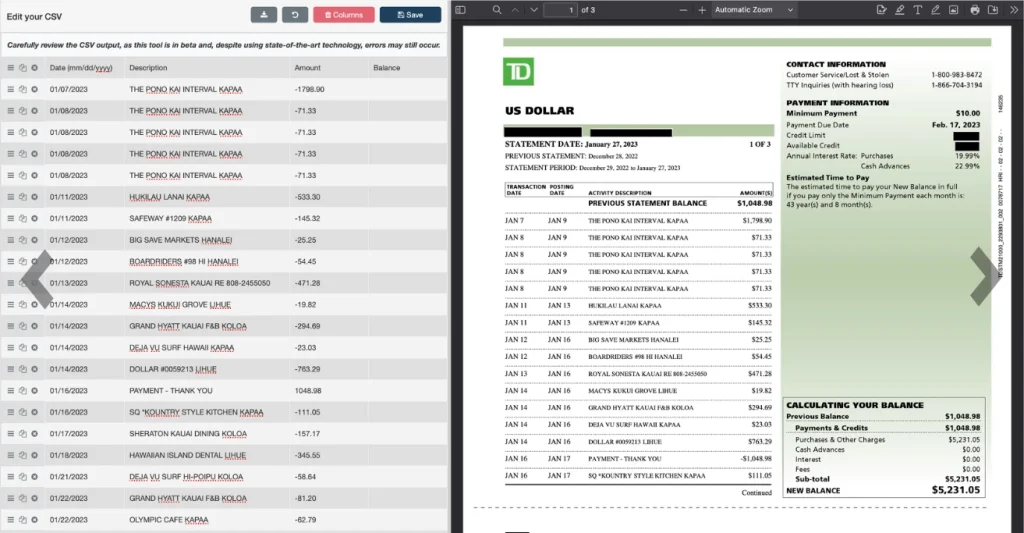
Side-by-Side Verification
Supports Scanned PDFs & Images
Full Automation with Bank Statement Fetching

FAQs
Yes. LedgerDocs acts as a CSV file converter and CSV file format converter by extracting structured data from PDFs and scanned documents and converting them into clean CSV files suitable for accounting software.
Upload your bank statement PDF to LedgerDocs. Our software automatically extracts tables and converts them to Excel, CSV, or Google Sheets formats.
Yes! LedgerDocs can convert credit card statements to Excel in seconds while maintaining accurate data structure.
If you’re asking how do I convert a PDF to an Excel file, the process is simple:
1. Upload your PDF
2. Choose Excel (.xlsx) or CSV output
3. Download your converted spreadsheet
LedgerDocs works for bank statements, credit card statements, invoices, and structured financial documents.
Simply upload your file and choose CSV output. LedgerDocs extracts data from PDFs, scanned PDFs, or images and converts them to Excel or CSV.
While LedgerDocs focuses on extracting and converting financial PDFs into Excel or CSV, you can download your structured CSV file and export it as a PDF using Excel or Google Sheets if needed.
Absolutely. Whether you need to convert Chase statements to Excel or to convert Citi bank statements to Excel spreadsheet, LedgerDocs supports it seamlessly.
To convert Chase statement to Excel, simply download your bank statement PDF from Chase and upload it to LedgerDocs. Our OCR-powered bank statement converter will automatically extract the transaction data and let you convert bank statement PDF into Excel or CSV in seconds.
Once converted, you can review and edit the data directly in LedgerDocs before exporting—ready for QuickBooks, Xero, or your accounting workflow.
Upload your PDF, select the table, and download it as Excel or CSV. LedgerDocs ensures accurate conversion without formatting errors.
Yes. After upload, you can convert your file using our PDF to Google Sheets converter workflow by downloading the structured CSV or Excel file and opening it directly in Google Sheets.
If you’re searching for pdf to google sheet, pdf to google sheets, or convert pdf to google spreadsheet, LedgerDocs provides accurate structured outputs that import seamlessly.
To convert text document to Excel, upload your structured document to LedgerDocs. Our OCR technology extracts tabular data and converts text-based financial records into spreadsheet-ready files.
If you’re searching how to convert text document to Excel, the process is simple — upload, extract, download.
LedgerDocs can extract structured financial data from PDFs and export it in spreadsheet-ready formats such as CSV, which can then be transformed into other structured formats like XML if required for system integrations.
Easily convert Word to Excel by uploading your text tables or documents to LedgerDocs. The OCR will extract structured data into spreadsheets.
LedgerDocs focuses on extracting and converting bank statements. After you convert bank statement PDF into Excel or convert bank statements to Excel or CSV with LedgerDocs, you can edit the data directly inside the app. Our built-in tools let you update transaction dates, descriptions, amounts, reorder rows, and remove columns—no need to re-download or re-upload files.
If you’re searching for how to edit bank statements after using a bank statement converter, LedgerDocs makes it fast, accurate, and seamless.
No. LedgerDocs is not a bank statement maker online. We do not generate or fabricate statements. LedgerDocs securely converts existing bank statement PDFs into Excel or CSV for bookkeeping and reconciliation.
Yes, export Excel or CSV files directly to QuickBooks Online, Xero, or other platforms.
You can convert a bank statement PDF to .qbo by using LedgerDocs’ PDF to CSV and .qbo conversion tools. Simply upload your bank statement PDF, let the system extract and structure the transaction data, and export it in .qbo format for easy upload into QuickBooks Online.
To import bank statements to QuickBooks Online, first convert your bank statement to a compatible .qbo file. Once converted, sign in to QuickBooks Online, go to Banking, choose Upload transactions, and select your .qbo file to import the data.
You cannot upload a bank statement PDF directly to QuickBooks Online. Instead, convert the bank statement PDF to .qbo format using a tool like LedgerDocs. After conversion, upload the .qbo file into QuickBooks Online through the Banking section.
Yes. LedgerDocs allows you to convert a bank statement PDF to .qbo by extracting transaction details such as dates, descriptions, and amounts. The generated .qbo file is formatted specifically for QuickBooks Online import.
CSV files are spreadsheet-based transaction files, while .qbo files are specifically formatted for QuickBooks Online. If you’re looking to import bank statements to QuickBooks Online without formatting errors, exporting in .qbo format is typically the most seamless option.
To download a Chase credit card statement in .qbo file format, log in to your Chase online banking account, navigate to your credit card account, and look for the “Download” or “Export” option. If .qbo format isn’t available, you can download the statement as a PDF and convert it to .qbo using LedgerDocs. Or you can use our bank statement fetching feature to automatically fetch your bank statement and then use our PDF to QuickBooks Online conversion tool to create a QuickBooks Online ready file.


