
Organizing your financial documents has never been so effortless. Automatically scan your files to a LedgerDocs company using ScanSnap Cloud. Perfect for busy bookkeepers, accountants and small business owners.
Install ScanSnap Home to your computer and set up your ScanSnap Home account if you did not already. Once that’s out of the way, you can follow the steps below:
Select Settings > Scan Settings within the ScanSnap Home app.
Chose ScanSnap Cloud method

Then choose Edit profiles:

Make sure you are editing the ScanSnap Cloud profile by selecting it:

Now choose your cloud service:
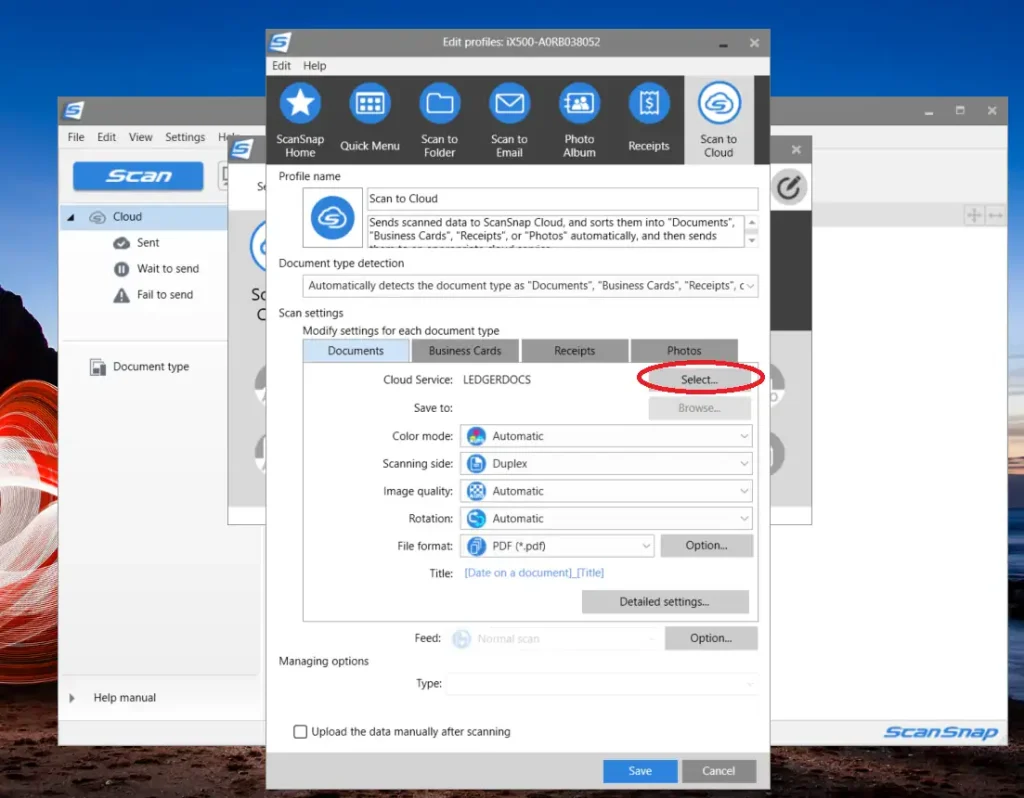
Scroll and select LedgerDocs to highligh and click the “Select” button:

A window will then prompt you to sign in to your LedgerDocs account:

After signing in to LedgerDocs, select the destination company for your scanned documents. Note: This setting can easily be changed within your LedgerDocs User Settings:

Finally, click the “Save” button, and then “Allow” in the next window. You’re now set to scan directly from ScanSnap to LedgerDocs. Happy Scanning!
Our friendly support team is available to answer any questions so email us at support@ledgerdocs.com.


